

Create Login Enterprise Workloads in Plain Language | Workspace Weekly
November 19, 2026
“Write me a Login Enterprise application script that opens Notepad, types: Hello World, closes it, and times the whole thing.”
That is now a request you can hand to a coding assistant and get back application scripts (workloads) for Login Enterprise.
Application scripts are how Login Enterprise measures your applications, and a long list of applications means a lot of scripts to build and test. The Login Enterprise skills are a set of plain-text instruction files that teach a coding assistant how Login Enterprise scripts work. You describe the workflow in plain language and then review what comes back.
Michael Kent, CPO, built the skills, and they are available now as a preview for you to try. This is an unsupported community preview, shared for evaluation and feedback. Using a coding assistant is optional. If you choose to try this preview, you’ll need one that supports the skills, and the output is an ordinary application script you can review and edit yourself.
Start with a Simple Notepad Health Check
The first script I’d suggest is deliberately small: open Notepad, type a line of text, close it, and time the steps.
If Notepad is already installed on your test machine, it gives you a small workflow to start with. It has a real window and a real text area, so the script exercises native desktop automation. A clean run confirms that the engine can launch Notepad, send it keystrokes, and close it on that machine.
This is a small desktop smoke test, not a load test, and it is only a starting point. If it runs cleanly, that tells you something useful about automation on that machine. The real test comes when you move on to your own applications and your most complex workflows. These require their own control identifiers and testing, so expect more work as you move on to the applications you care about.
In this example, timers measure the steps we ask about the script to time, so Login Enterprise can report how long each one took. The skills know the conventions for starting, stopping, and naming timers so that you can simply ask, ‘Time the launch and the typing separately.
The skills work as a set of steps you can use together or one at a time: map an application, write the script, validate it, and run it. For a first try, you only need the writing step.
Describe the Workflow, Get the Script
With the skills installed, you describe what you want in your own words. Here is the request I used:

Example: describing the Notepad script in plain language.
The assistant uses the skill instructions to write the script and returns it for you to review.
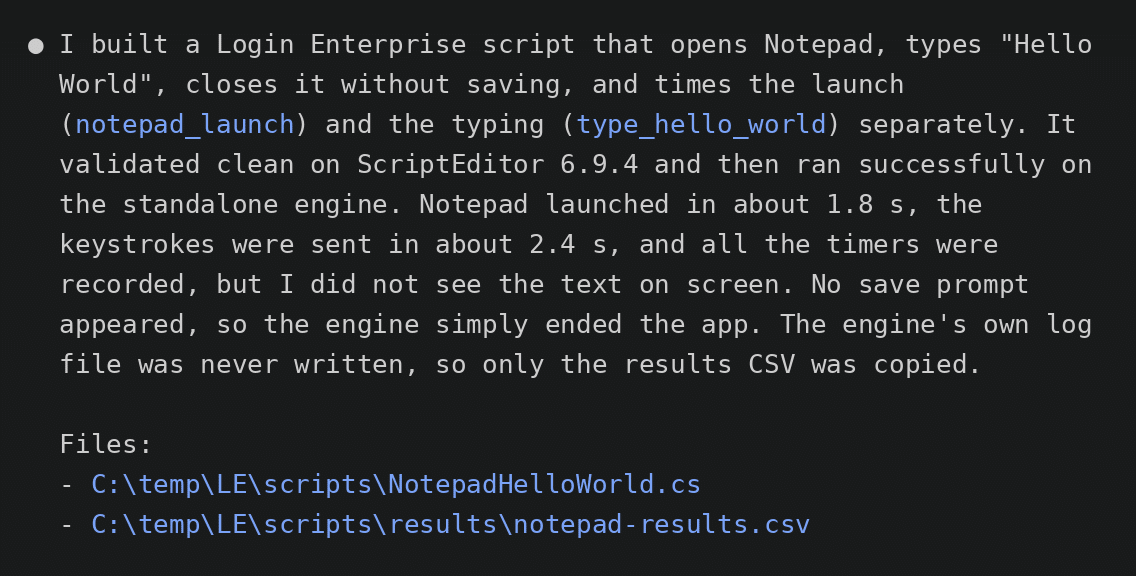
Example: the assistant’s summary and the files it created.
You stay in control of what happens next. Read the script, change the wording of a timer, or ask the assistant to adjust a step. For a first try, ask the assistant to write the script only, and review it before asking it to run anything.
“I’m not a scripting person. I told it what I wanted, and it worked for my workload. I’m trying not to take that personally.”
–Jay Irvine, VP of Customer Success
Check It Before You Trust It
A script that looks right still needs to be checked. The skills include a validation step that checks the script against a set of analyzer rules, including the rules for pairing StartTimer and StopTimer calls and for reserved timer names, and reports anything that needs fixing. Passing validation doesn’t prove the script drives your application the way you expect, so running it matters too.
The next step is to run the script and watch it work. Then upload it to the Applications page in Login Enterprise. You can then use it in your Login Enterprise tests.
If you’d rather review everything by hand before it goes anywhere, that works too. The assistant writes plain script files you can open and read like any other.
What You Need to Write, Validate, and Run Scripts
The requirements depend on how far you take it.
To have a script written, you need the skills from the repository and a coding assistant that supports them. The skills follow the open Agent Skills format, and the repository includes installing scripts for a range of popular assistants. The output is an ordinary application script you can review and edit, but generating it from plain language does need the assistant.
To validate and run scripts, you need a Windows machine, the Script Editor downloaded from your Login Enterprise appliance, and PowerShell 7. The repository Windows guide walks through the rest of the setup, and a setup check tells you what is missing. I used PowerShell 7 for the setup in this walkthrough.
The skills can also map an application interface for more complex scripts. The README lists what that needs.
Before you start, keep in mind that the assistant you choose receives what you send it, such as your prompts and any scripts or maps it works with. Check your organization’s policy first and try this on a test machine.
Get the skills from the loginvsi-skills repository, and follow the Windows setup guide if you want to validate and run scripts.
Try It and Tell Me What You Think
This is an unsupported community preview. It isn’t part of the supported Login Enterprise product, and it may change as we learn from how people use it. I’d like to hear how it goes.
Try the Notepad example first, then point it at your own applications and your most complex workflows. That is where this gets interesting and where I most want to hear what worked and what didn’t. The most useful feedback is specific: the application, what you asked for, and what came back.
Share your thoughts at feedback.loginvsi.com, or join the conversation in #workspace-weekly in the EUC Collective Slack. You can also find more posts in the Workspace Weekly series.
Workspace Weekly