
Hydra Lens: AI-Powered Reporting and Monitoring for Enterprise Azure Virtual Desktop and Windows 365
November 24, 2026
When a user reports a slow Azure Virtual Desktop session, the answer is almost always in the data. The difficulty is that the data is scattered: connection diagnostics live in AVD Insights, round-trip time and RDP Shortpath drops sit in Log Analytics, sign-in context is in Entra ID, Cloud PC activity is in the Intune admin center, and session host performance is on the host itself. For enterprise IT teams and MSPs supporting thousands of sessions, correlating all of it by hand is slow and expensive.
Hydra Lens brings all of that data together in one place. It is the reporting and monitoring capability built into Hydra, the management platform for Azure Virtual Desktop (AVD), Windows 365 and AVD Hybrid, and with Hydra 3.0 it now includes Ask Hydra, so your team can get AI-powered answers from that data in plain language instead of correlating it by hand.
What is Hydra Lens?
Hydra Lens gives IT and MSP teams built-in AVD and Windows 365 reporting on connections, network performance, errors, logon times, usage and licensing, combined with real-time Hydra Agent telemetry and AI-powered answers through Ask Hydra, with no separate monitoring stack to build or maintain.
Enterprise desktop teams use Hydra Lens for everyday jobs including:
- Troubleshooting user experience issues down to the individual user and session.
- Monitoring network and connection quality across locations, ISPs and protocols.
- Reporting on usage, peak concurrency and licensing for IT, finance and customers.
- Getting answers from workspace data without writing KQL queries or switching between Azure portals.
Map AVD Round-Trip Time and Bandwidth by User Location
Network quality determines how responsive a virtual desktop is, and it is naturally the first thing users notice. Hydra Lens maps where connections originate and breaks down network performance by client location, so a regional outage or a problem with a single ISP shows up as a pattern on the map instead of a stream of individual tickets.
Network reporting in Hydra Lens includes:
- Connection origins plotted on a live map, filtered by tenant, host pool and time period
- Average, maximum and 90th percentile (P90) round-trip time (RTT) by country and city
- Average, maximum and P90 bandwidth by location, with the connection protocol in use
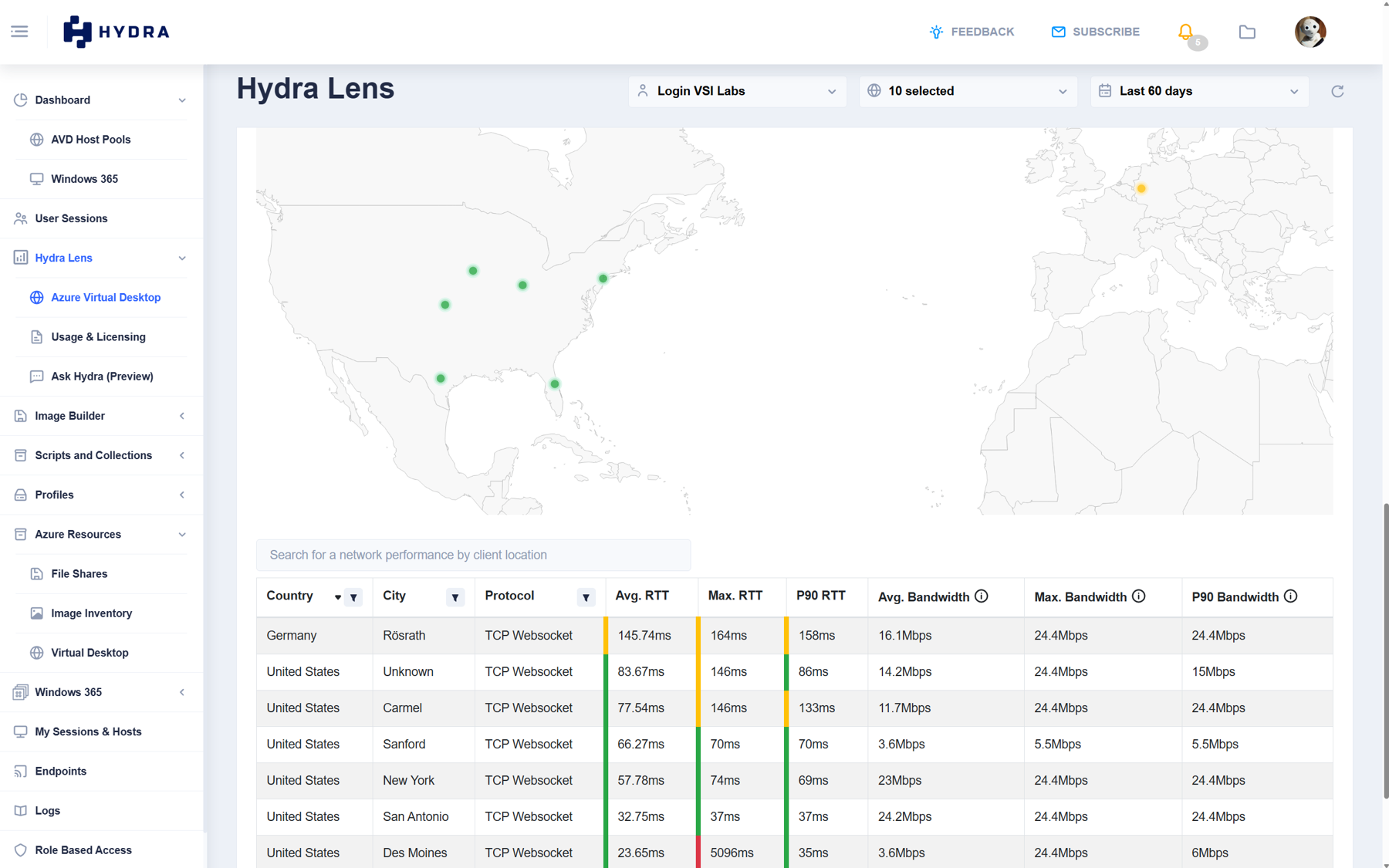
Hydra Lens shows where connections originate and how each location is performing.
Troubleshoot Slow AVD Sessions Down to the Individual User
When one person reports a problem, the helpdesk needs to know quickly whether the cause is the user’s own connection, the host pool, or the transport. Hydra Lens lets your team select any user and open their connection history for the chosen time window, with sessions, connection times, errors and network metrics side by side.
That view makes it straightforward to tell “this user always has a weak home connection” apart from “the host pool is overloaded” or “RDP Shortpath is dropping.” Hydra Lens also groups errors by client type and version and by IP segment, which helps teams spot an outdated client or a problem network range across many users at once.
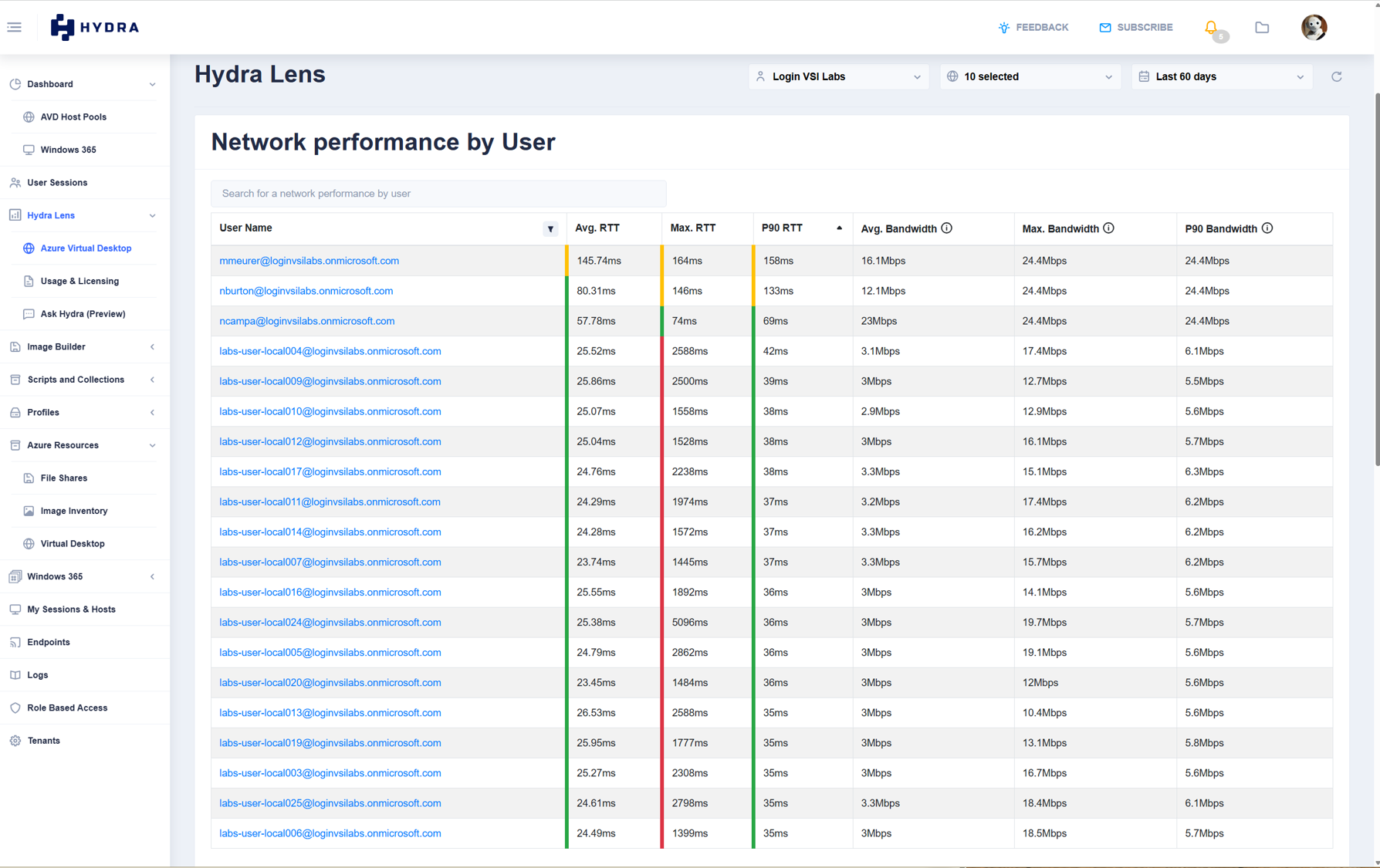
Network performance by user, with average, maximum and P90 RTT and bandwidth.
Track Average AVD Logon Times for Every User
Slow logons are one of the most common complaints in any virtual desktop workspace. Hydra Lens reports average and P90 Windows logon time for each user, next to summary cards for host pools, session hosts, unhealthy and orphaned session hosts, average logon timing and the number of host pools with diagnostic logging enabled. Teams can see at a glance whether a slow logon is an outlier or part of a trend.
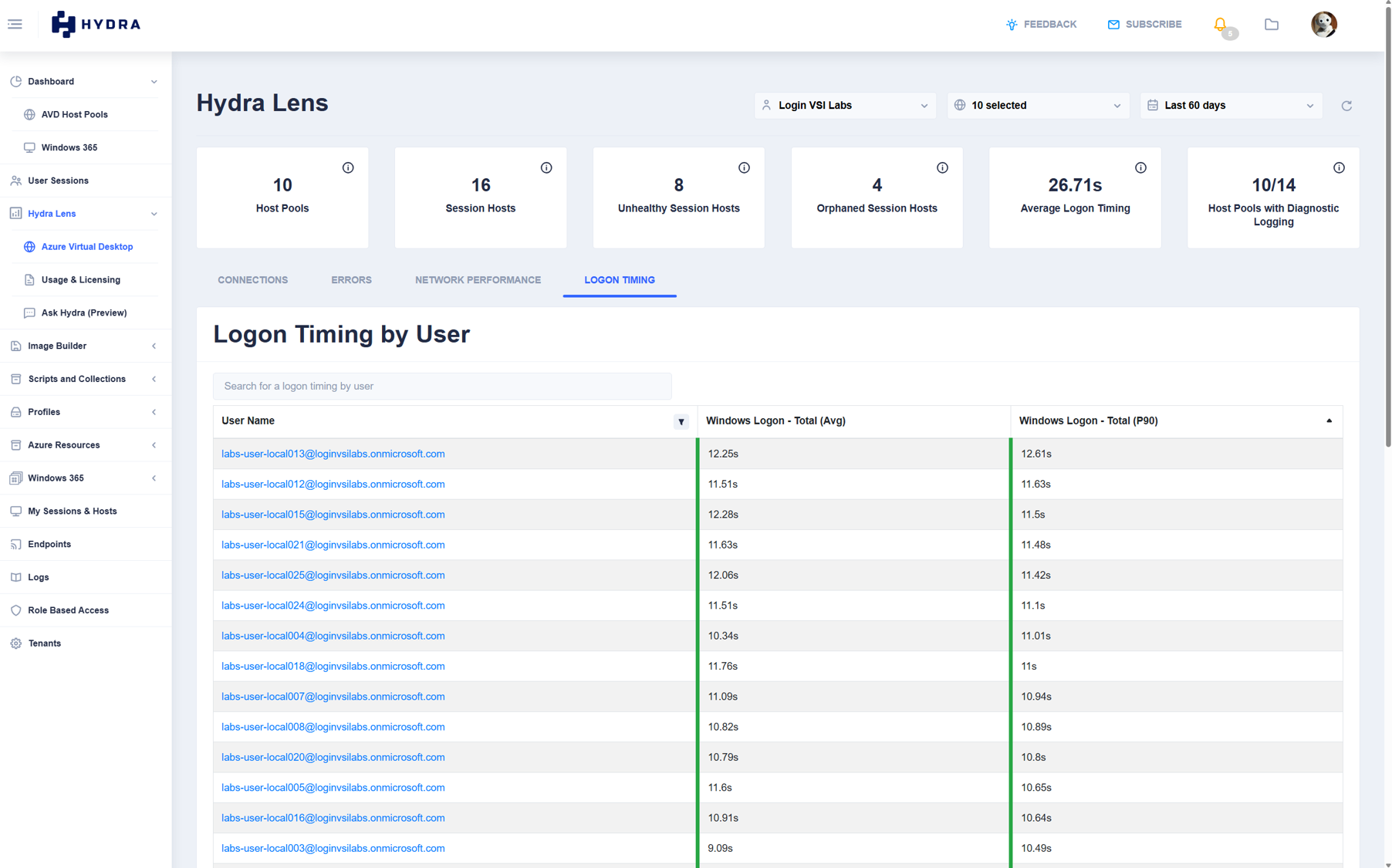
Logon timing by user, with host pool and session host health at the top of the page.
Report Concurrent Users, Peak Usage and Licensing per Tenant
Capacity planning and cost reporting depend on accurate usage data. Hydra Lens shows concurrent user (CCU) and peak session data with export, including Windows 365 Cloud PC activity. Peak usage is also available per tenant, which MSPs use to report back to each customer.
The figures use the same units Hydra licenses by: peak concurrent users for Azure Virtual Desktop and per Cloud PC for Windows 365. This means IT, operations and finance can all work from the same numbers without maintaining extra spreadsheets.
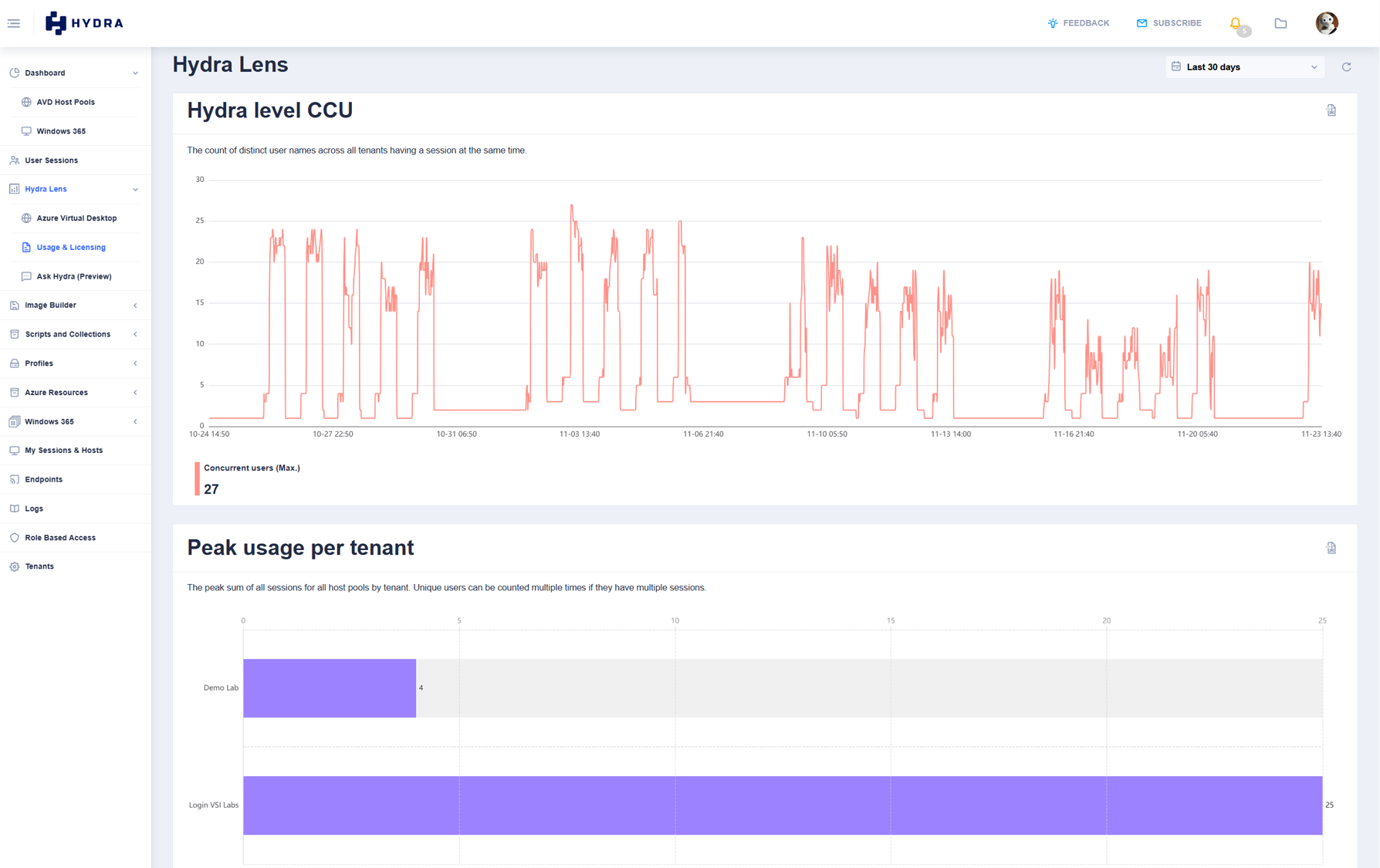
Concurrent users over time and peak usage per tenant.
Real-Time Session Host Telemetry with the Hydra Agent
Historical reporting tells you what happened and where. However, when something is breaking right now, your team also needs live detail. Hydra Lens surfaces session host context on demand, including VM size, disk size, FSLogix version and IP address, and the Hydra Agent adds live and recent telemetry from every host and Cloud PC.
That telemetry covers CPU, memory, processor and disk queue length, session round-trip time, running processes and the network path down to the Windows client. Hydra Lens provides the trend and origin view, and the Hydra Agent provides live diagnostics. Together they let helpdesk staff act without escalating or opening Azure Monitor.
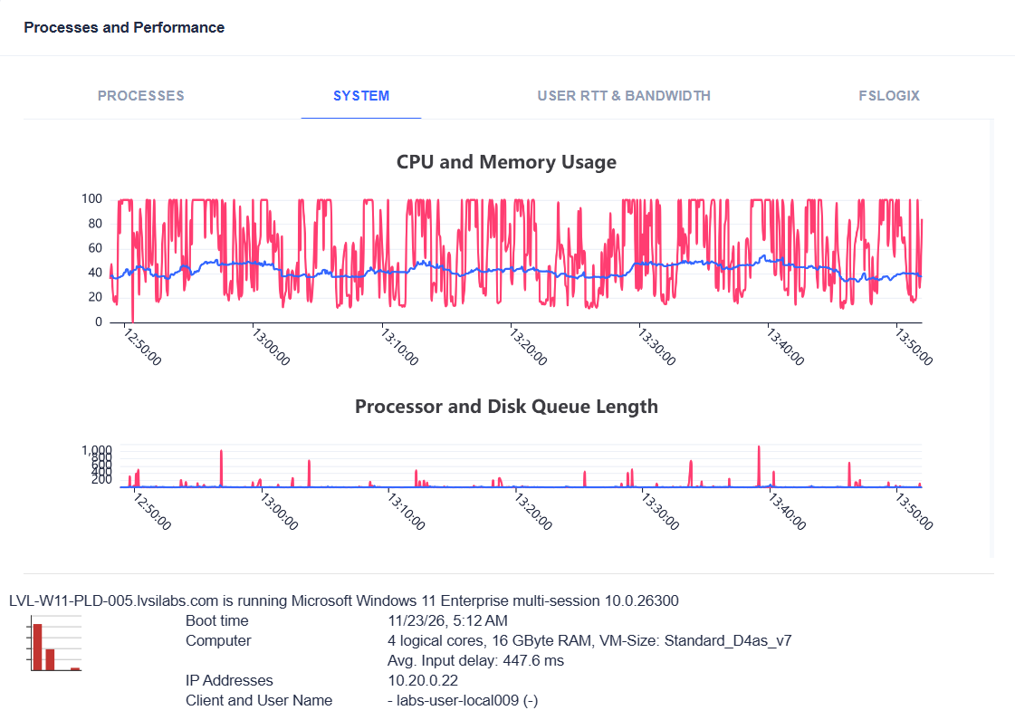
Real-time CPU, memory and disk queue data from the Hydra Agent.
Ask Hydra: AI-Powered Answers from Your AVD and Windows 365 Data
Ask Hydra brings AI-powered reporting into Hydra Lens. It connects your organization’s already approved AI model, deployed through Microsoft Foundry, to the data Hydra already correlates, including:
- AVD Insights connection diagnostics and performance data.
- Log Analytics and Azure Monitor data, including RTT, RDP Shortpath drops and host performance counters.
- Entra ID sign-in logs, including location, Conditional Access results and app sign-ins.
- Session host performance, FSLogix status, Windows 365 activity and Intune settings.
- Real-time telemetry from the Hydra Agent.
What Your Team Can Ask in Plain Language
Administrators can ask questions in natural language and get answers, charts, and recommendations in seconds, such as:
- Which session hosts had the highest RTT this week?
- Summarize errors across all host pools today.
- Is any host pool at risk of running out of capacity?
Questions like these used to require custom KQL and several portals, and with Ask Hydra they take just one sentence.
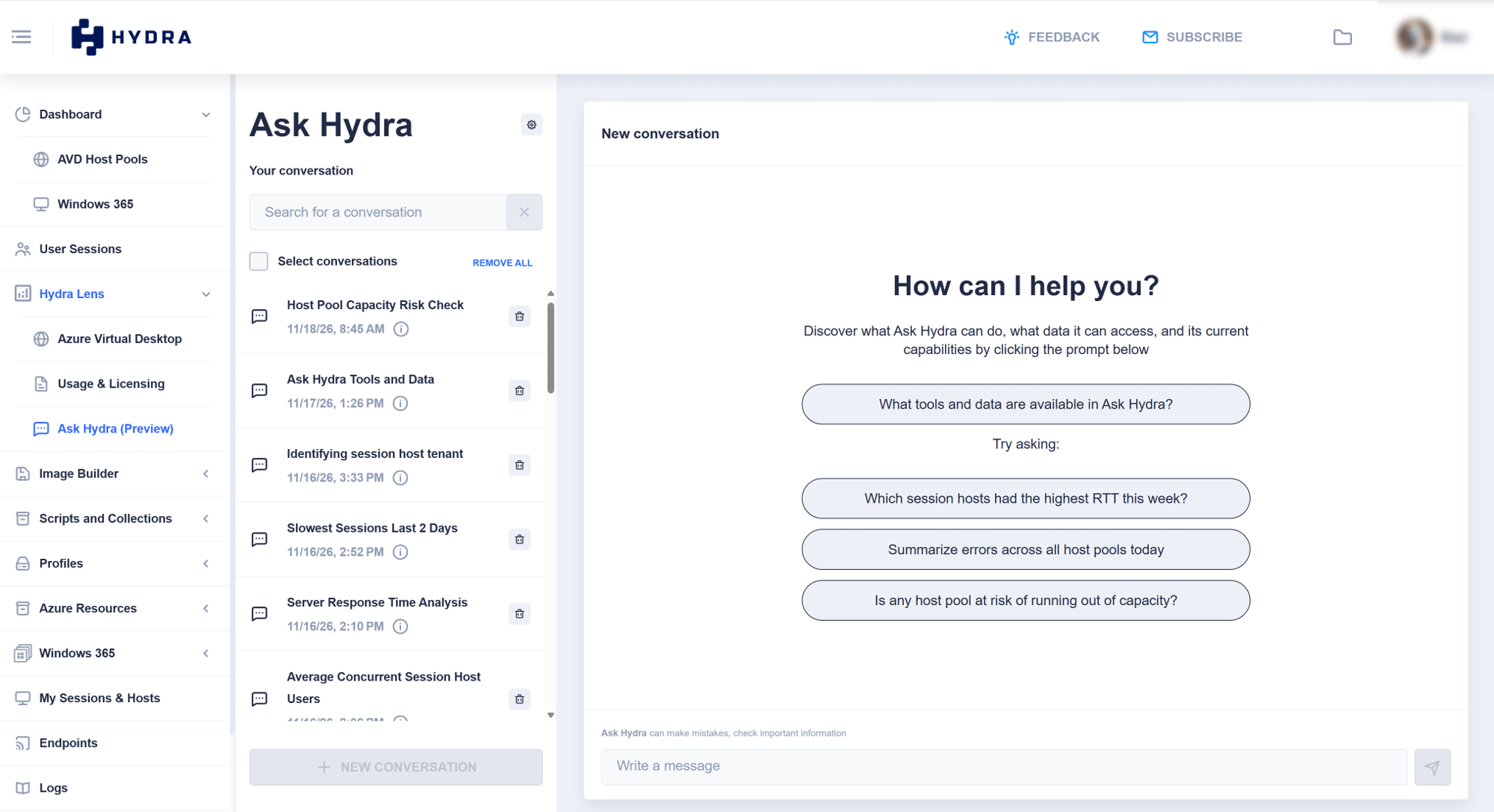
Ask Hydra keeps a history of your team’s questions and answers.
Built for Enterprise AI Governance
For enterprise IT and MSP teams, the question with AI goes beyond what it can do to how it gets into production safely. Every new model, data path and vendor has to clear security review, and most organizations have already done that work for the AI they use today. We designed Ask Hydra to fit that reality from day one, so teams can put AI to work in Hydra Lens without starting a new approval process.
- Uses the AI your organization already approved. Hydra does not add a new model to your workspace, so existing data handling and compliance controls stay in place.
- Read-oriented by design. Ask Hydra informs decisions and leaves every change to your administrators.
- Nothing new to deploy. Ask Hydra runs inside Hydra with no additional Hydra license. Model usage runs on your own Azure subscription.
- Built for what comes next. Ask Hydra is the foundation for AI-assisted administration in 2027, where Hydra will recommend actions and help carry them out with an administrator’s approval.
One Reporting View Across AVD, Windows 365 and AVD Hybrid
Hydra Lens works wherever Hydra runs, so your team uses the same reports, the same drill-downs and the same Ask Hydra experience whether your desktops run on Azure Virtual Desktop, Windows 365 or AVD Hybrid.
Here’s what Hydra Lens covers on each platform:
- Azure Virtual Desktop: connection quality, errors and peak concurrency across every host pool, with any slow session traceable back to its cause.
- Windows 365: Cloud PC activity, sign-in data and Intune settings in one view, without piecing the experience together across separate admin portals.
- AVD Hybrid: session hosts in your own data center on Hyper-V or VMware vSphere appear alongside cloud hosts, so on-premises performance and usage are reported the same way as Azure.
Why Enterprise IT and MSP Teams Use Hydra Lens
Hydra manages Azure Virtual Desktop and Windows 365 for Fortune 500 enterprises, global financial institutions and healthcare organizations, and large MSPs. Hydra Lens is built for the way those teams work at scale.
- No separate monitoring stack. Reporting, real-time telemetry and AI answers live in the platform that already manages the workspace.
- Multi-tenant by design. MSPs filter by tenant, compare tenants and report peak usage per customer from one console.
- Role-based access. Custom roles and delegated access give helpdesk, operations and customer teams exactly the visibility they need.
- Fast to deploy. Hydra deploys in under 30 minutes with no onboarding fees, and Lens works from day one.
- Aligned with Microsoft. Hydra is a Microsoft Partner, transactable on the Microsoft Marketplace and MACC eligible.
How Hydra Lens Builds on AVD Insights and Azure Monitor
Microsoft provides strong building blocks for AVD and Windows 365 monitoring, including Azure Virtual Desktop Insights, Log Analytics and the Cloud PC reports in the Intune admin center. Hydra Lens builds on these sources and places them alongside Hydra’s own session, host and Agent data. Your team spends less time switching between portals and writing queries, and more time resolving the issue in front of them.
See Hydra Lens in Action
When a session slows down or a connection drops, your team needs the full picture fast. Hydra Lens gives it to them: connection, network, logon, usage and licensing data in one view, real-time telemetry from the Hydra Agent down to the Windows client, and AI-powered answers from Ask Hydra, all inside the console your team already uses to manage Azure Virtual Desktop and Windows 365. Every answer about your workspace stays in one place, so your team spends less time searching and more time resolving.
Hydra deploys in under 30 minutes with no onboarding fees, so you can connect it to your workspace and start using Hydra Lens the same day. Book a demo to see Ask Hydra answer questions about a live workspace, or start a free trial and explore Hydra Lens with your own data.
| Request a demo | Try Hydra free |
Frequently Asked Questions
What Does Hydra Lens Report On?
Hydra Lens reports on connections, network performance (RTT and bandwidth), errors, logon times, concurrent users, peak usage and licensing across Azure Virtual Desktop, Windows 365 and AVD Hybrid, with real-time session host and endpoint telemetry from the Hydra Agent.
Does Hydra Lens Replace AVD Insights or Azure Monitor?
Hydra Lens draws on the diagnostic data that powers AVD Insights and Azure Monitor and combines it with Hydra’s own data in one console. Host pools need diagnostic logging enabled for full connection and error reporting, and Lens shows which host pools have it turned on.
Which AI Model Does Ask Hydra Use?
Ask Hydra uses the AI model your organization has already approved, deployed through Microsoft Foundry. Hydra does not introduce its own model into your workspace.
Can Ask Hydra Make Changes to My Workspace?
No. In Hydra 3.0, Ask Hydra is read-oriented. It retrieves, correlates and explains data, and every change remains with your administrators.
Does Hydra Lens Work with Windows 365?
Yes. Hydra Lens includes Windows 365 Cloud PC activity, sign-in data and Intune settings, reported alongside Azure Virtual Desktop and AVD Hybrid.
Can MSPs Report Across Multiple Customer Tenants?
Yes. Hydra Lens supports filtering across one or many tenants, and peak usage is reported per tenant for customer reporting and billing.
What Is a Good Round-Trip Time for Azure Virtual Desktop?
Microsoft generally recommends keeping round-trip time under 150 milliseconds for a responsive session. Hydra Lens shows average, maximum and P90 RTT by user and location, so teams can see who falls outside that range and why.
Is There an Extra Cost for Hydra Lens or Ask Hydra?
Hydra Lens and Ask Hydra are included in Hydra. AI model usage runs on your organization’s own Azure subscription.
Hydra