

Putting Login Enterprise 6.9 to Work | Workspace Weekly
October 7, 2026
Keeping a testing setup useful takes work beyond running the tests. A connector change needs to reach the right Launchers. When application failures increase, someone needs to compare the results and decide where to investigate.
In What’s New in Login Enterprise 6.9, I introduced the release. This follow-up looks more closely at four improvements and how you might apply them in your own setup.
For the complete list of changes and upgrade notices, see the Login Enterprise 6.9 release notes.
See the Login Enterprise 6.9 Workflows in Action
Follow the interactive walkthrough for custom connector packages, Launcher maintenance, and Application Execution comparison. It also introduces the temporary-Test cleanup scenario behind the Public API example later in this article.
Open the interactive walkthrough.
Distribute Custom Connector Files from One Place
If you maintain a custom connection script used by several Launchers, a change to the connection flow means distributing revised files. Copying them to every machine becomes another task to track, especially when several Tests depend on the same connector.
Custom Connector Packages lets you upload a named ZIP to the Appliance and select it in a Test. Launchers download and extract the files when needed. The connector command line can use {packageRoot} to locate them.
The value is simpler distribution. Update the shared package centrally instead of maintaining separate copies on each Launcher. Replacing its contents affects subsequent runs of every Test that references it, so check those references before making the change. Packages cannot be edited while a referencing Test is running.
Package use is optional and requires Launcher v6.9 or later. Install required runtimes on the Launcher separately. Keep packages small: downloads contribute to initial login time, including after package updates.
The PowerShell package-publishing example accepts a folder or existing ZIP, creates or replaces a package, and retrieves the stored metadata for verification.
From the example directory, this invocation packages the included demonstration file and uploads it:
The examples use Windows PowerShell 5.1 and require a System Access Token with the appropriate permissions. Use an Appliance HTTPS certificate trusted by the machine running the code. If certificate validation fails, correct the certificate or trust configuration rather than bypassing validation. Keep real tokens out of published code and source control.
$params = @{
ApplianceUrl       	= 'https://YOUR_APPLIANCE'
SourcePath         	= '.\sample-files'
Name               	= 'Hello World Package Demo'
Version            	= '1.0.0'
Description        	= 'Packaging and upload demonstration only.'
DefaultCommandTemplate = 'cmd.exe /c exit 1'
}
$result = .\Publish-CustomConnectorPackage.ps1 @params
$result | Format-List
The script prompts for your System Access Token. To upload an existing ZIP, change SourcePath to its path.
The sample contains only HelloWorld.txt. Its command intentionally exits with a failure code, so it is not a connector to use in a running Test. This example demonstrates packaging and upload; follow the Custom Connector documentation to build and validate your connection workflow.
Folder and existing-ZIP uploads were verified on Login Enterprise 6.9.2. This package workflow is separate from the repository’s Windows 365 connector-script management examples.
Learn more: Custom Connector Packages.
Arrange Launcher Maintenance Around Your Testing
For a team administering Launchers across several environments, routine maintenance can mean returning to individual machines at inconvenient times. A predictable validation window gives you an opportunity to arrange that work in advance.
In 6.9, the UI lets you schedule Launcher application restarts, machine restarts, and updates. Restarts and updates support daily or weekly schedules; updates also support a one-time schedule.
For example, you could schedule a weekly Launcher application restart after a recurring validation window ends. Choose the relevant Launchers and a time that fits your maintenance window, then check the outcome afterward. This gives the administrator a way to plan recurring maintenance alongside the testing those Launchers support.
Automatic updates address a related task: keeping Launchers current when the Appliance has newer Launcher software available. When enabled, the automatic update mechanism retries if it cannot proceed, including during active sessions.
A scheduled action specifies a maintenance time. Automatic updates reduce manual follow-up as newer Launcher software becomes available on the Appliance. Choose the approach that fits your operations.
Launcher upgrades through the UI or API require existing Windows Launchers on v6.6 or later.
Periodic application restarts give you a fresh Launcher process without returning to each machine manually.
API restart scheduling was available in 6.8; 6.9 adds the UI workflow. This example creates an enabled weekly application restart for one named Launcher, every Sunday at 02:00. It stops if that Launcher already has a restart or update schedule.
$ApplianceUrl = 'https://YOUR_APPLIANCE'
$Token = 'YOUR_SYSTEM_ACCESS_TOKEN'
$LauncherName = 'YOUR_LAUNCHER'
$ErrorActionPreference = 'Stop'
[Net.ServicePointManager]::SecurityProtocol = [Net.SecurityProtocolType]::Tls12
$base = $ApplianceUrl.TrimEnd('/') + '/publicApi/v8-preview'
$headers = @{ Authorization = "Bearer $Token" }
encodedName=[uri]::EscapeDataString(LauncherName)
launcher=Invoke-RestMethod-Uri"base/launchers/$encodedName" -Headers $headers
if ($launcher.restartSchedules -or $launcher.updateSchedule) {
throw 'This Launcher already has a maintenance schedule. Review it in the UI.'
}
$body = @{
launcherName = $LauncherName
restartType  = 'application'
scheduleType = 'weekly'
enabled  	= $true
days     	= @('sunday')
time     	= '02:00:00'
}
$request = @{
Uri     	= "$base/launchers/restart-schedules"
Method  	= 'Post'
Headers 	= $headers
ContentType = 'application/json'
Body    	= ConvertTo-Json -InputObject $body
}
Invoke-RestMethod @request |
Select-Object launcherName, enabled, restartType, days, time, nextRunAt
Review the saved schedule under Launchers > Schedule, including the displayed time and next run, before relying on it. For inspection without execution, set enabled to $false; that is how schedule creation and readback were validated for this example.
Learn more: Configuring the Windows Launcher.
Compare Application Failures Across Continuous Tests
Suppose you are validating a proposed desktop image. You run comparable Continuous Tests against the current image and its replacement, using the same application workloads over a comparable period.
Application Execution details in 6.9 let you review execution failures over time and compare details across Continuous Tests. If failures increase in the proposed image while the current image remains steady, you have a more focused place to begin investigating.
That comparison helps with the next decision: what needs attention before you move the image forward? Review the affected period alongside the image changes and relevant application behavior. The results help narrow the investigation; determining the cause still requires follow-up.
This extends the results workflow beyond the Application Performance comparison introduced in 6.8.
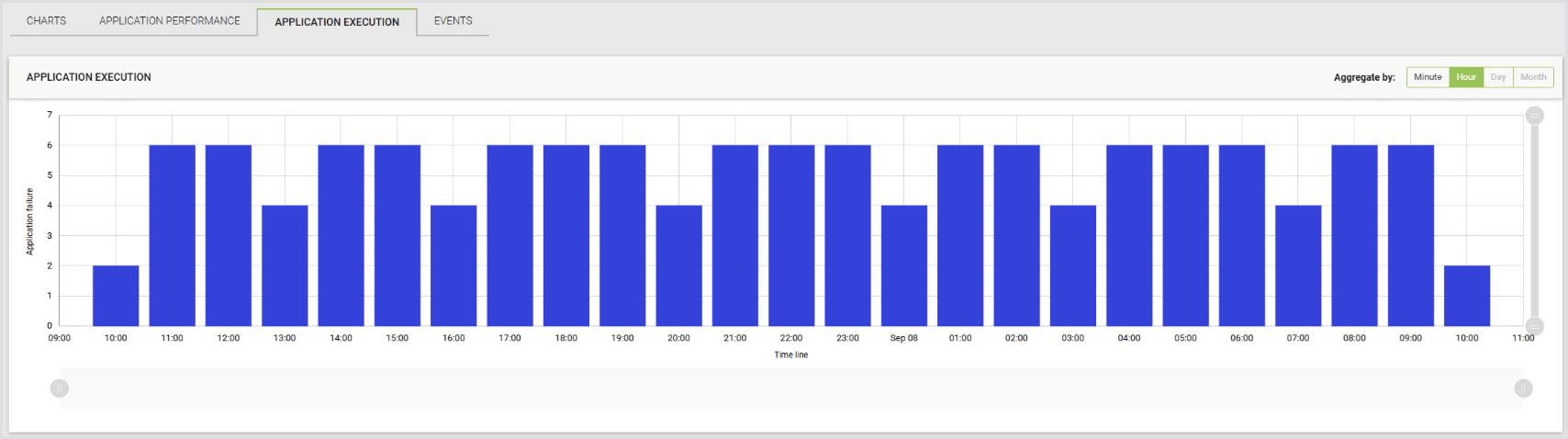
Figure 1: Application execution failures over time in Continuous Test results.
Learn more: Viewing Continuous Testing Results.
Clean Up Temporary Test Configurations Through the API
An image evaluation may leave behind temporary Test configurations for several candidate builds. Once the work is complete, those configurations can sit alongside the Tests your team actively maintains, making the list harder to review.
Login Enterprise 6.9 adds Public API bulk deletion for supported objects, including all Test configuration types, Applications and Application groups, Launchers and Launcher groups, Providers, Environments, Locations, and Session metric definitions and groups.
The example below covers Application Test configurations. For someone who regularly creates temporary configurations, it makes cleanup repeatable; the broader feature supports cleanup across other parts of the testing setup through their respective API endpoints.
Keep the selection deliberate. Start with explicit IDs for temporary configurations of one Test type, display the selected objects for review, and run the deletion step separately. This makes the intended scope visible before anything is removed.
The result is a clearer configuration list for the next round of work.
Supply explicit IDs and run this example with $Delete = $false to preview the names, types, and IDs. After reviewing the selection, change $Delete to $true and run it again.
$ApplianceUrl = 'https://YOUR_APPLIANCE'
$Token = 'YOUR_SYSTEM_ACCESS_TOKEN'
$TestIds = @('FIRST_TEST_ID', 'SECOND_TEST_ID')
$Delete = $false
$ErrorActionPreference = 'Stop'
[Net.ServicePointManager]::SecurityProtocol = [Net.SecurityProtocolType]::Tls12
$base = $ApplianceUrl.TrimEnd('/') + '/publicApi/v8-preview'
$headers = @{ Authorization = "Bearer $Token" }
ids=@(TestIds | ForEach-Object { ([guid]$_).ToString() } | Select-Object -Unique)
if (-not $ids.Count -or $ids -contains [guid]::Empty.ToString()) {
throw 'Supply explicit, nonempty Test IDs.'
}
selected=@(foreach(id in $ids) {
test=Invoke-RestMethod-Uri"base/tests/$id" -Headers $headers
if ($test.type -ne 'ApplicationTest') {
throw "Test $id is not an Application Test."
}
[pscustomobject]@{ Name = $test.name; Type = $test.type; ID = $id }
})
$selected | Format-Table -AutoSize
if ($Delete) {
$request = @{
Uri     	= "$base/tests"
Method  	= 'Delete'
Headers 	= $headers
ContentType = 'application/json'
Body    	= ConvertTo-Json -InputObject $ids
}
$result = Invoke-RestMethod @request
$result | Select-Object status, deletedCount, deletedKeys
if ($result.failed) { $result.failed | Format-Table -AutoSize }
if ($result.failed -or $result.deletedCount -ne $ids.Count) {
throw 'Deletion was incomplete. Review the response before retrying.'
}
}
The API returns the deletion status, count, deleted IDs, and individual failures. That gives cleanup automation useful information to act on, including when only part of a request succeeds.
The workflow was verified using two disposable Application Tests: both were previewed, bulk deleted and subsequently returned HTTP 404.
Learn more: Using the Public API.
Get Started with Login Enterprise 6.9
Start with the workflow that addresses work you already repeat. If connector changes regularly mean copying files between Launchers, package distribution may be the most useful place to begin.
To obtain installation files, visit Downloads. For an existing Appliance, follow Updating Login Enterprise, including the recommended snapshot step.
If you’re exploring Login Enterprise, request a custom walkthrough with our team to discuss your testing needs.
Share your experience in the Login VSI Customer Slack, #workspace-weekly. You can find more practical examples in the Workspace Weekly hub.
Workspace Weekly